What Your Photos Reveal About Location — and How to Control It
Every time you take a photo with your phone, your device quietly records a dossier of information and embeds it directly into the image file. The time you took the shot. The camera settings. The exact GPS coordinates of where you were standing. The direction you were facing. The altitude above sea level.
This information is called EXIF data — Exchangeable Image File Format metadata — and it's invisible when you look at the photo. You can't see it in your camera roll. You can't see it when you post the photo to social media. But anyone who has the original image file can read every field in seconds using free tools.
For most people, this is a surprising and slightly uncomfortable realization. That photo of your kids in the backyard? It contains the GPS coordinates of your home. That vacation shot you texted to a colleague? It contains the exact location of your hotel. The selfie you sent through WhatsApp? Well — WhatsApp stripped the metadata, but the original on your phone still has it.
This guide explains everything you need to know about EXIF metadata: what it contains, how to read it, who can access it, how social media platforms handle it, and — most importantly — how to control it. If you're concerned about photo privacy more broadly, pair this with our comprehensive guide to photo geolocation and privacy, which covers the full dual-channel privacy model (metadata plus visual content).
What Is EXIF Data?
EXIF (Exchangeable Image File Format) is a standard that specifies the format for storing metadata in image and audio files. It was created in 1995 by the Japan Electronic Industries Development Association (JEIDA) and has since been adopted by virtually every digital camera and smartphone manufacturer. The standard is now maintained by the Camera & Imaging Products Association (CIPA) and has been incorporated into ISO 12232.
When you take a photo, your camera or phone automatically writes EXIF data into the image file. This happens silently, with no user interaction required. The data is embedded directly in the JPEG, TIFF, or HEIC file — not in a separate database or sidecar file. If you email the photo, the EXIF data goes with it. If you copy the file to a USB drive, the EXIF data goes with it. If you upload it to a website that doesn't strip metadata, the EXIF data goes with it.
What EXIF Data Contains
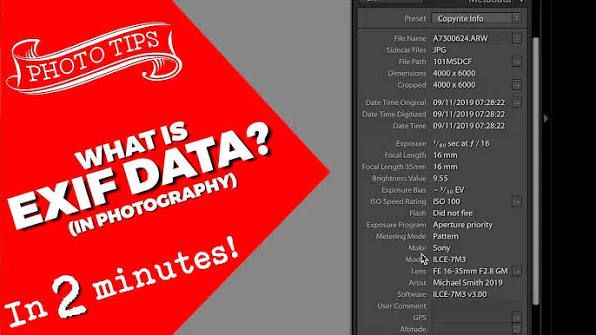
A typical EXIF block from a smartphone photo contains 30–50 data fields. Here are the most significant ones for location privacy:
The GPS fields are the most sensitive. When present, they provide the exact latitude and longitude of where the photo was taken — typically accurate to within 5–10 meters. That's precise enough to identify a specific building, a specific room in some cases, and certainly a specific street address.
Which Devices Record GPS Data?
Most modern smartphones record GPS data in photos by default, provided that:
- Location services are enabled for the camera app
- GPS is available (outdoors, or near a window with GPS signal)
- The user hasn't explicitly disabled location tagging in camera settings
Here's how location tagging works on major platforms:
- iPhone (iOS): Settings → Privacy & Security → Location Services → Camera → "While Using the App." If set to "Never," no GPS data is recorded.
- Android: Settings → Location → App permissions → Camera. Varies by manufacturer (Samsung, Google, Xiaomi, etc.)
- DSLR/Mirrorless cameras: Most do not have built-in GPS. Some high-end models do, or GPS can be added via an external module. Without GPS hardware, no location data is recorded.
If you're not sure whether your photos contain GPS data, the easiest way to check is to view the photo's info on your phone. On iPhone, swipe up on any photo in the Photos app to see a map showing where it was taken. On Android, open the photo in Google Photos and tap the "i" icon. If you see a map, your photos contain GPS data.
How to Read EXIF Data
Reading EXIF data is straightforward and requires no special expertise. Here are the most common methods:
On Your Phone
- iPhone: Open the Photos app → select a photo → swipe up → view the "Info" panel showing location map, date, and camera details
- Android (Google Photos): Open a photo → tap the "i" (info) icon → view location, date, and camera details
- Android (file manager): Long-press a photo → Properties / Details → view EXIF fields
On Your Computer
- macOS: Open the photo in Preview → Tools → Show Inspector (⌘+I) → click the "i" tab (Exif) or GPS tab
- Windows: Right-click the photo → Properties → Details tab → scroll through EXIF fields
- Browser-based: Upload a photo to ExifData or Jeffrey's Exif Viewer — these show all EXIF fields including GPS coordinates on a map
How to Strip EXIF Data Before Sharing
If you want to share a photo without revealing your location, you need to strip the EXIF data before the file leaves your device. Here's how to do it on every major platform.
On iPhone (iOS)
Method 1: Share sheet (iOS 16+)
- Open the Photos app and select the photo
- Tap the Share button
- Tap "Options" at the top of the share sheet
- Under "All Photos Data," toggle off "All Photos Data"
- This strips location data from the shared copy
Method 2: Copy without metadata
- Open the photo → tap the Share button
- Tap "Copy" (this copies the image without metadata in some iOS versions)
- Paste into your destination app
Method 3: Screenshot Taking a screenshot of a photo creates a new image file with no EXIF data. This is a crude but effective method if other options aren't available.
On Android
Method 1: Google Photos
- Open Google Photos → select the photo
- Tap the Share button
- The shared copy may retain metadata depending on the sharing method
- For guaranteed stripping, use the "Send without metadata" option if available (varies by Android version and manufacturer)
Method 2: Third-party app Apps like "Photo Exif Editor" (free on Google Play) allow you to view and remove EXIF data from photos before sharing.
The Bigger Picture: Why EXIF Stripping Isn't Enough
Here's the hard truth that most privacy guides miss: stripping EXIF data only eliminates one of two location channels. Even a photo with zero metadata — no GPS, no timestamp, no camera info — can still reveal its location through the visual content of the image itself.
This is the dual-channel model of photo location privacy:
- Channel 1 (Metadata): EXIF data, including GPS coordinates. You can control this by stripping it.
- Channel 2 (Visual content): The buildings, signs, vegetation, terrain, and other visible elements in the photo. You cannot strip this without altering the photo itself.
Modern AI geolocation tools like GeoSpy work primarily through Channel 2. They analyze the visual content of a photo — not the metadata — to predict where it was taken. This means that even a perfectly stripped photo, shared through a platform that removes all EXIF data, can still be geolocated by AI.
This is why understanding both channels matters. Stripping EXIF data is necessary but not sufficient for photo privacy. For a complete understanding of what AI can extract from your photos' visual content — and what you can do about it — read our guide to photo geolocation and privacy.
To understand the technical pipeline behind AI visual geolocation — how neural networks extract geographic signals from pixel data — see our technical deep dive on AI photo geolocation.
Take Control of Your Photo Metadata
EXIF data is a double-edged sword. On one hand, it's incredibly useful — it lets you organize photos by location, remember where you took a shot, and provides valuable evidence in investigative contexts. On the other hand, it's a privacy risk that most people don't even know exists.
The good news: controlling your metadata is straightforward once you know how. Disable GPS tagging if you don't want it. Strip metadata before sharing sensitive photos. And remember that metadata is only half the story — the visual content of your photos can also reveal your location through AI analysis.
Want to see what AI can extract from your photos? Try GeoSpy — upload any photo and see how accurately AI can predict its location, with or without metadata. It's free, requires no signup, and your images are never stored.